Skip to content
Fondazione ITS INCOM

ComfyUI on our GPUs

Images and video with open models, from the browser or from ComfyUI Desktop on your own computer. Our machines do the computing: your laptop needs no graphics card.

Add-on for ComfyUI Desktop, version 0.1.0, MIT licence. To run jobs you need an ITS INCOM AI account.

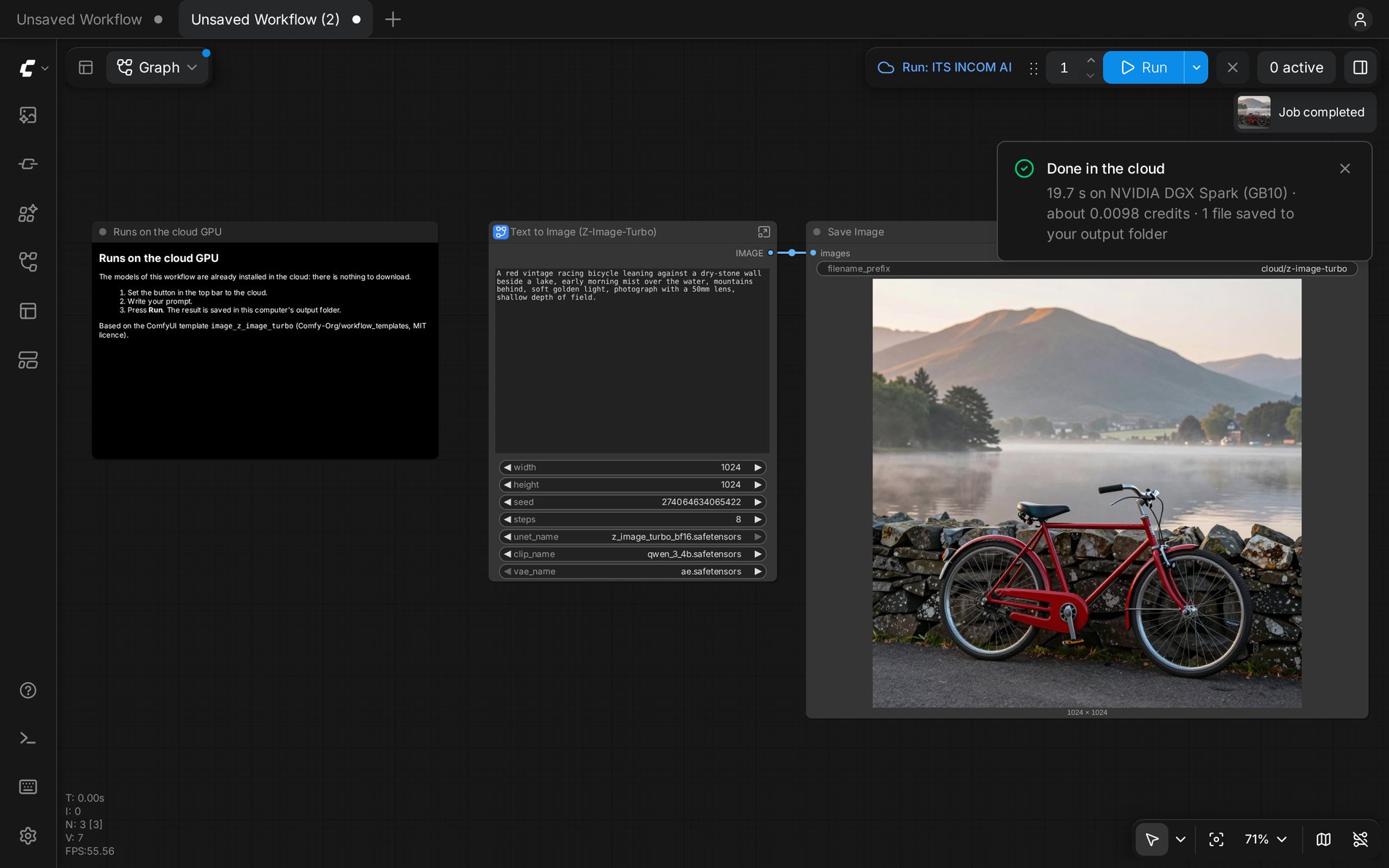
The ComfyUI editor after a job run in the cloud: the button “Run: ITS INCOM AI”, the generated picture and the notice with the seconds and the credits.

Two ways to work

The account and the models are the same. What changes is where the editor lives.

In the browser

Open the editor from the dashboard and start working, with nothing to install. Your workflows stay in your account: you find them again from any computer.

Good in a classroom and on a computer that is not yours.

Open the editor

From ComfyUI Desktop

You work in your own ComfyUI, with your workflows and your folders. A button next to Run decides where the job runs: on your computer or on our GPUs.

The whole graph runs in the cloud. The preview arrives while the machine works and the files end up in your computer's output folder.

Install the add-on

If you use ComfyUI every day, Desktop suits you better: your files are already on the disk and the same workflow also runs on your own graphics card. For a lesson or a first try the browser is enough.

ComfyUI Desktop in three steps

You do this once per computer.

  1. Install ComfyUI Desktop

    Download it from comfy.org for Windows or macOS. If the computer has no suitable graphics card, choose CPU mode during the installation: you need no models, because they are on our machines.

    A ComfyUI you already have, portable or installed by hand, works too.

  2. Add the add-on

    Paste this command into the terminal: it finds ComfyUI's folder, downloads the add-on and puts it in custom_nodes.

    macOS and Linux
    curl -fsSL https://ai.itsincom.org/comfyui/install.sh | sh
    Windows (PowerShell)
    irm https://ai.itsincom.org/comfyui/install.ps1 | iex

    Or download the zip and unpack it into the custom_nodes folder. The zip is already set up for this site: only the key is missing.

    Then restart ComfyUI.

  3. Paste your key

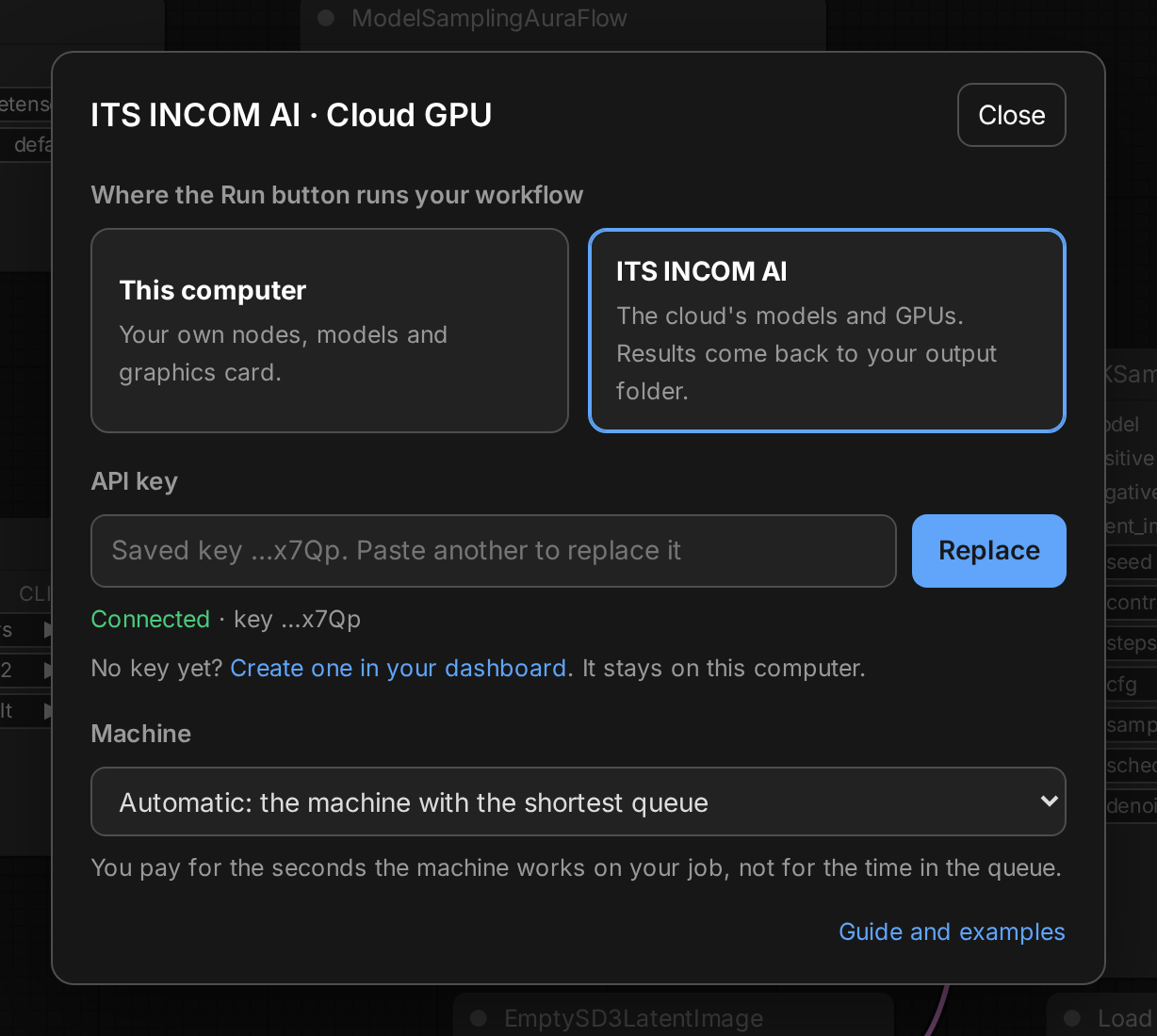
    Next to Run you find the button “Run: this computer”. Open it, paste an API key created in the dashboard and choose ITS INCOM AI. From then on Run sends the job to our GPUs.

    To go back to your computer, open the same panel again.

The add-on's panel: the choice between “This computer” and ITS INCOM AI, the connected API key and the choice of machine.
The panel that opens from the button next to Run.

The add-on is at version 0.1.0, tested with ComfyUI 0.44. If something does not work, write to segreteria@itsincom.it.

What happens when you run in the cloud

With the add-on, from ComfyUI Desktop.

Nodes and models are the cloud's
In cloud mode the node search and the model lists show what is installed on our machines. If the workflow uses a node we do not have, the editor says so before anything starts and nothing is charged.
Input files go up by themselves
The images the workflow loads are sent along with the job, up to 50 MB each. The same file never travels twice.
You follow the job in the editor
Progress and previews arrive as they do locally. Cancel stops the job on the GPU too.
Results come back to your disk
Images and videos are downloaded to your ComfyUI's output folder and show up in the nodes as they do after a local run.
You know what it cost
When the job is done, a notice says how many seconds the machine worked and how many credits that is.
Back to local whenever you like
The same button takes Run back to your computer. In local mode the add-on sends nothing.

Ready-made examples

Five workflows already set up for our machines. In ComfyUI Desktop they are under Templates, in the add-on's group. From here you download them and drag them into the editor, the one in the browser included.

A red vintage racing bicycle leaning against a dry-stone wall beside a lake, early morning mist over the water, mountains behind, soft golden light, photograph with a 50mm lens, shallow depth of field.

A photograph in a few seconds

Z-Image-Turbo Apache-2.0

17 s on NVIDIA DGX Spark (GB10), about 0.0085 credits

1024 × 1024

The prompt

A red vintage racing bicycle leaning against a dry-stone wall beside a lake, early morning mist over the water, mountains behind, soft golden light, photograph with a 50mm lens, shallow depth of field.

Download the workflow
A bookshop window at dusk on a cobbled street, warm light inside, shelves full of books. A hand-painted wooden sign above the door reads "LAKESIDE BOOKS". A chalkboard on the pavement reads "Today: coffee & new arrivals". Wet cobblestones reflect the light. Photograph, 35mm lens.

Readable lettering inside the scene

Qwen-Image Apache-2.0

42 s on NVIDIA DGX Spark (GB10), about 0.0212 credits

1328 × 1328

The prompt

A bookshop window at dusk on a cobbled street, warm light inside, shelves full of books. A hand-painted wooden sign above the door reads "LAKESIDE BOOKS". A chalkboard on the pavement reads "Today: coffee & new arrivals". Wet cobblestones reflect the light. Photograph, 35mm lens.

Download the workflow
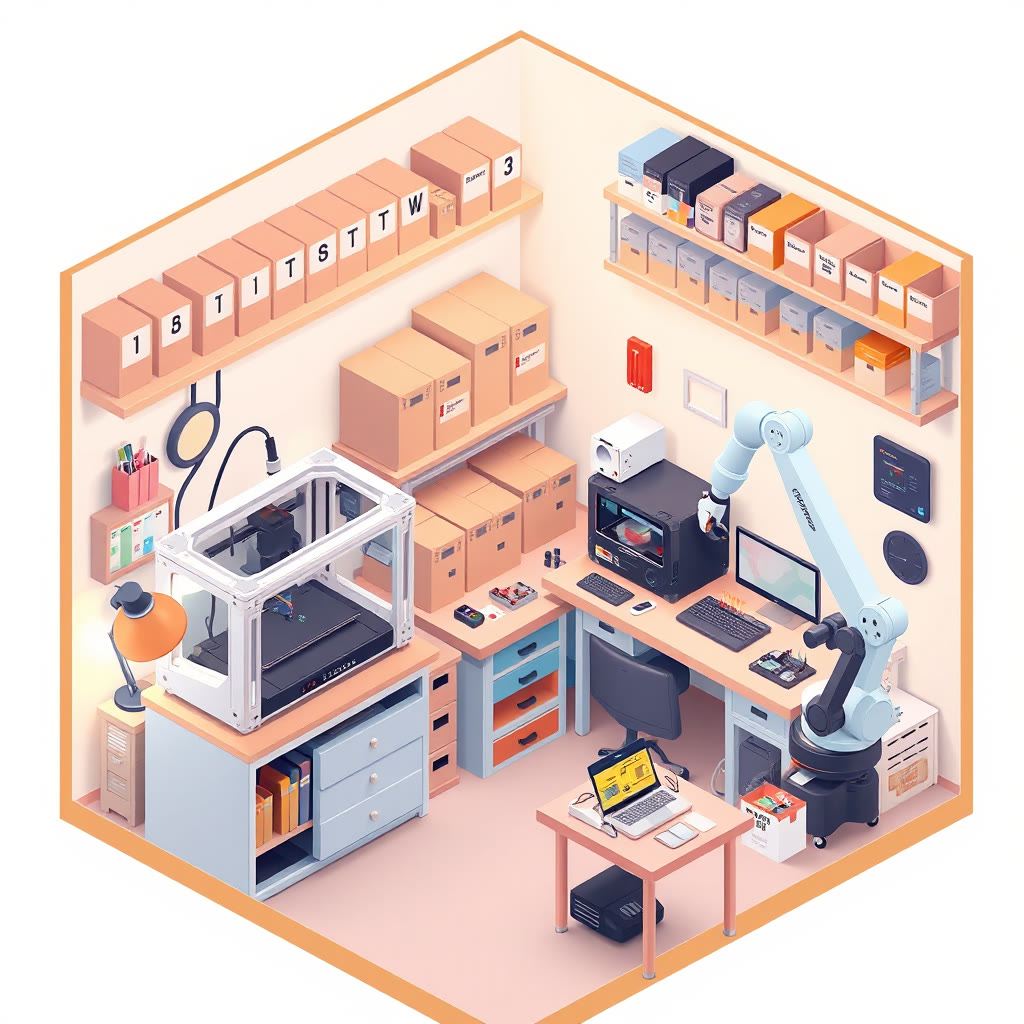
Isometric cutaway illustration of a small maker workshop: two 3D printers at work, a soldering bench, shelves of labelled boxes, a robot arm sorting parts, warm desk lamps, clean flat shapes, soft pastel colours.

An illustration in four steps

FLUX.1 schnell Apache-2.0

14 s on NVIDIA DGX Spark (GB10), about 0.0072 credits

1024 × 1024

The prompt

Isometric cutaway illustration of a small maker workshop: two 3D printers at work, a soldering bench, shelves of labelled boxes, a robot arm sorting parts, warm desk lamps, clean flat shapes, soft pastel colours.

Download the workflow

Five seconds of video with sound

LTX-2.5 LTX-2 Community License

111 s on NVIDIA DGX Spark (GB10), about 0.0557 credits

1280 × 704, 5 s, audio

The prompt

Close-up of a barista's hands pouring steamed milk into an espresso cup, a rosetta forming on the surface, steam rising, shallow depth of field, warm morning light through the café window. Sound: the hiss of the steam wand fading, milk pouring, cups clinking, low café chatter in the background.

Download the workflow

A video from one sentence

Wan 2.2 TI2V 5B Apache-2.0

341 s on NVIDIA DGX Spark (GB10), about 0.17 credits

1280 × 704, 5 s

The prompt

A paper boat drifts down a clear mountain stream between mossy stones. Sunlight flickers through the leaves onto the water. The camera follows the boat at water level, slow and steady. Natural colours.

Download the workflow

The times are the ones measured on the machine named. The seed is random: your result will differ from these.

Models and licences

We choose and install the models, each under its own licence.

ModelWhat it is forLicence
Z-Image-Turbo Photographic images in 8 steps Apache-2.0
FLUX.1 schnell Images and illustrations in 4 steps Apache-2.0
Qwen-Image Images with well-written text, long text too Apache-2.0
Wan 2.2 TI2V 5B Video from text or from an image Apache-2.0
LTX-2.5 Video with sound, from text or from an image LTX-2 Community License

A model's licence also covers what you make with it. LTX-2.5 has a list of forbidden uses: read it on the model's page before you publish a video.

For now the cloud has ComfyUI's stock nodes: no third-party node packs and no models of your own. If you miss a model, write to segreteria@itsincom.it.

Costs and limits

You pay for the seconds the machine works on your job. Time in the queue is free, and so is a job that was cancelled or failed.

MachineCredits per second
NVIDIA DGX Spark (GB10) 0.0005
  • 3 jobs at a time per user, queued or running.
  • Input files up to 50 MB each.
  • Results stay in the cloud for 30 days. With Desktop they are already on your disk.

Prompts and results go through a content check. A result that is withheld is not delivered and the editor says so. The job did run, so its seconds still count.

From a script

The service speaks ComfyUI's API under https://my.ai.itsincom.org/comfy/api. Export the workflow from the editor with “Export (API)”, put it in the prompt field and send it with your key.

Queue a job
curl https://my.ai.itsincom.org/comfy/api/prompt \
  -H "Authorization: Bearer $KEY" \
  -H "Content-Type: application/json" \
  -d '{"prompt": { ... }}'

The answer carries a prompt_id. With it you read the job's status, then download the files it lists.

Status and result
curl https://my.ai.itsincom.org/comfy/api/jobs/PROMPT_ID -H "Authorization: Bearer $KEY"
curl "https://my.ai.itsincom.org/comfy/api/view?filename=FILE&subfolder=cloud&type=output" \
  -H "Authorization: Bearer $KEY" -o result.png

The calls, the limits and the errors are on the ComfyUI page of the documentation.

Questions people ask

Do I need a graphics card?

No. The laptop only draws the graph: the computing happens on our machines. ComfyUI Desktop also installs in CPU mode.

Can I use my own models or LoRAs?

Not yet: the cloud has the models listed on this page. With Desktop you set Run back to “This computer” and use the ones on your disk.

Does a workflow found on the web work?

Yes, if it uses ComfyUI's stock nodes and the models listed here. If a node is missing, the editor names it before anything starts.

What leaves my computer?

The graph you queue, the input files it uses and your key. The add-on sends neither the list of your models nor usage data. In local mode it sends nothing.

Where do my files go?

They stay in the cloud for 30 days and only your account can see them. With Desktop a copy is already in your computer's output folder.

Where do I keep the key?

You create it in the dashboard, under API keys. It stays on your computer, in a file only your user can read: the editor sees its last four characters.

No access yet?

Ask for it with your @itsincom.it address: the school office approves the request.